

A loud alarm clock for heavy sleepersWake up sharp. Not just awake.
Pick a sound from the Loud category, then choose what you want to do when the alarm rings. Solve a few math problems, scan a bottle, or get moving with a walking mission.
Available on the App Store and Google Play
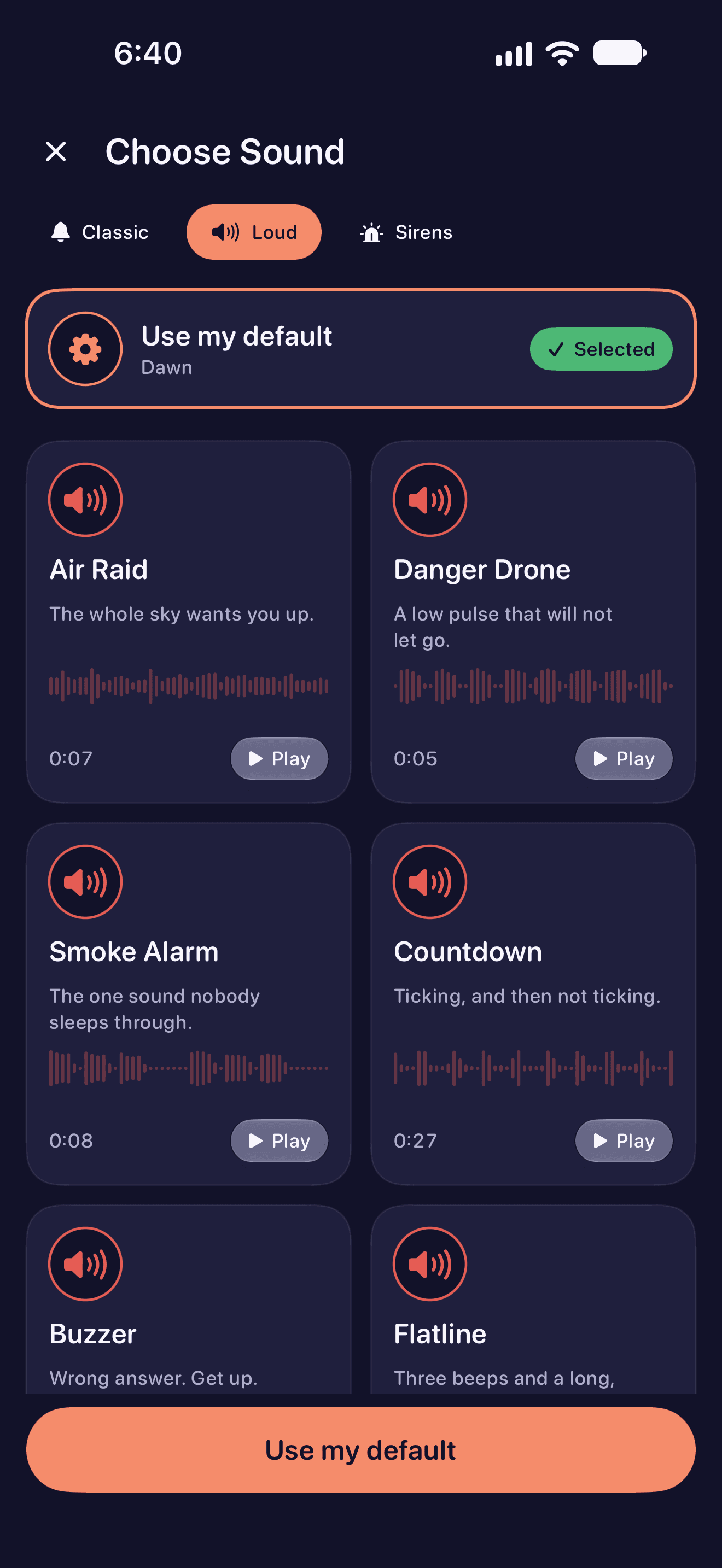
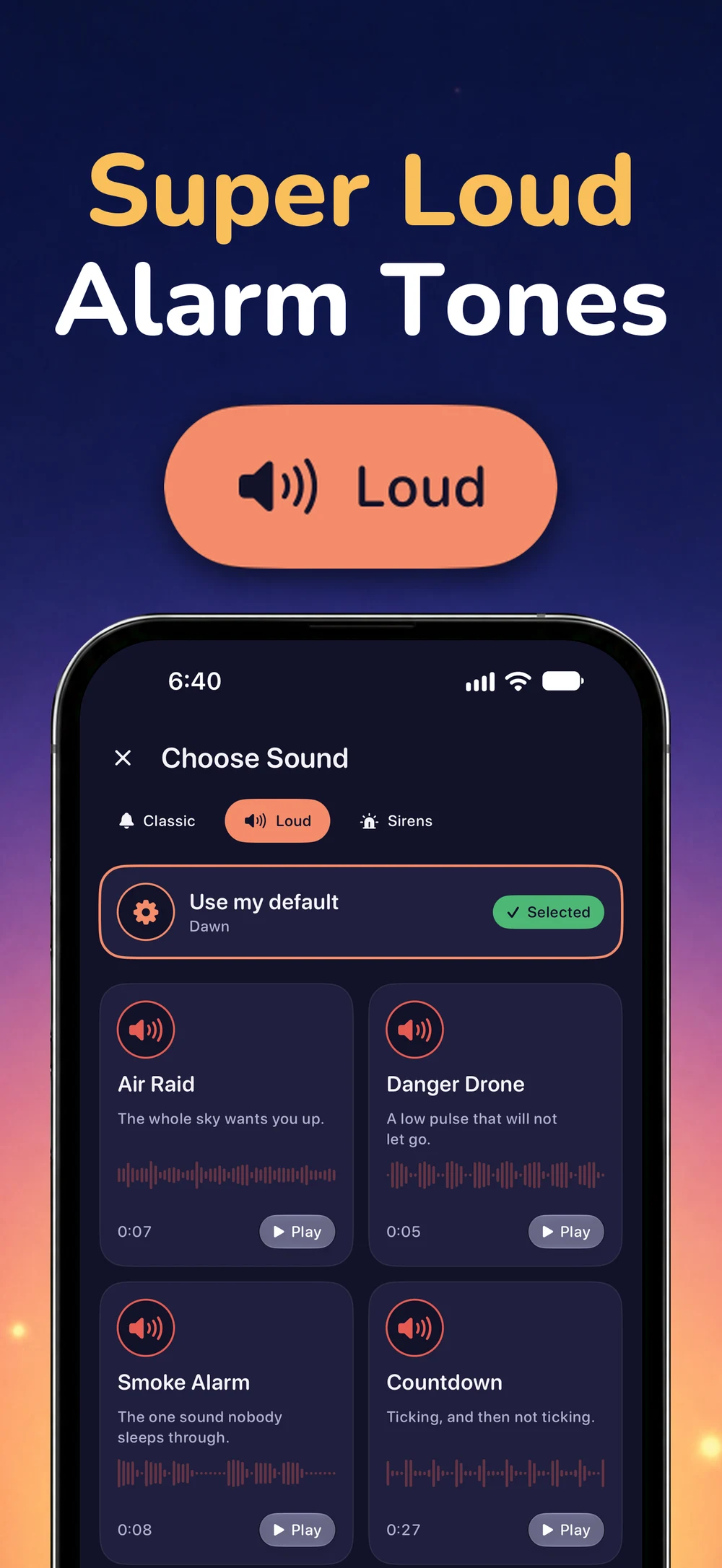
Start with a sound you will notice
Loud is a sound category in the alarm editor. Open the sound picker, listen to the tones, and choose the one you want for that alarm. You can pair the same tone with any available mission.
On iPhone, system alarm volume is controlled by iOS. Choosing a Loud tone does not override that setting. On Android, check the alarm volume and allow alarms in Do Not Disturb. Test the sound on your own phone before relying on it.
Get up. Find it. Scan it.
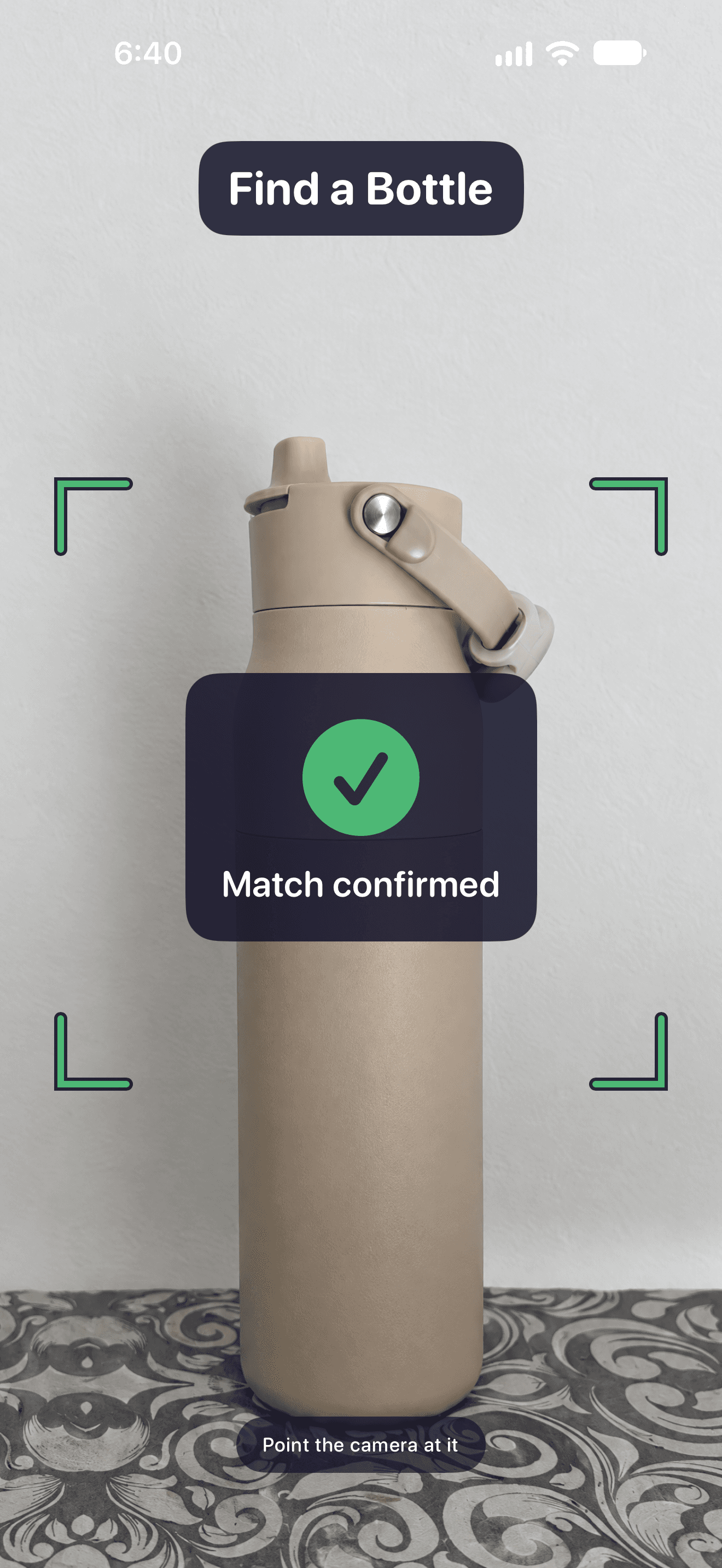
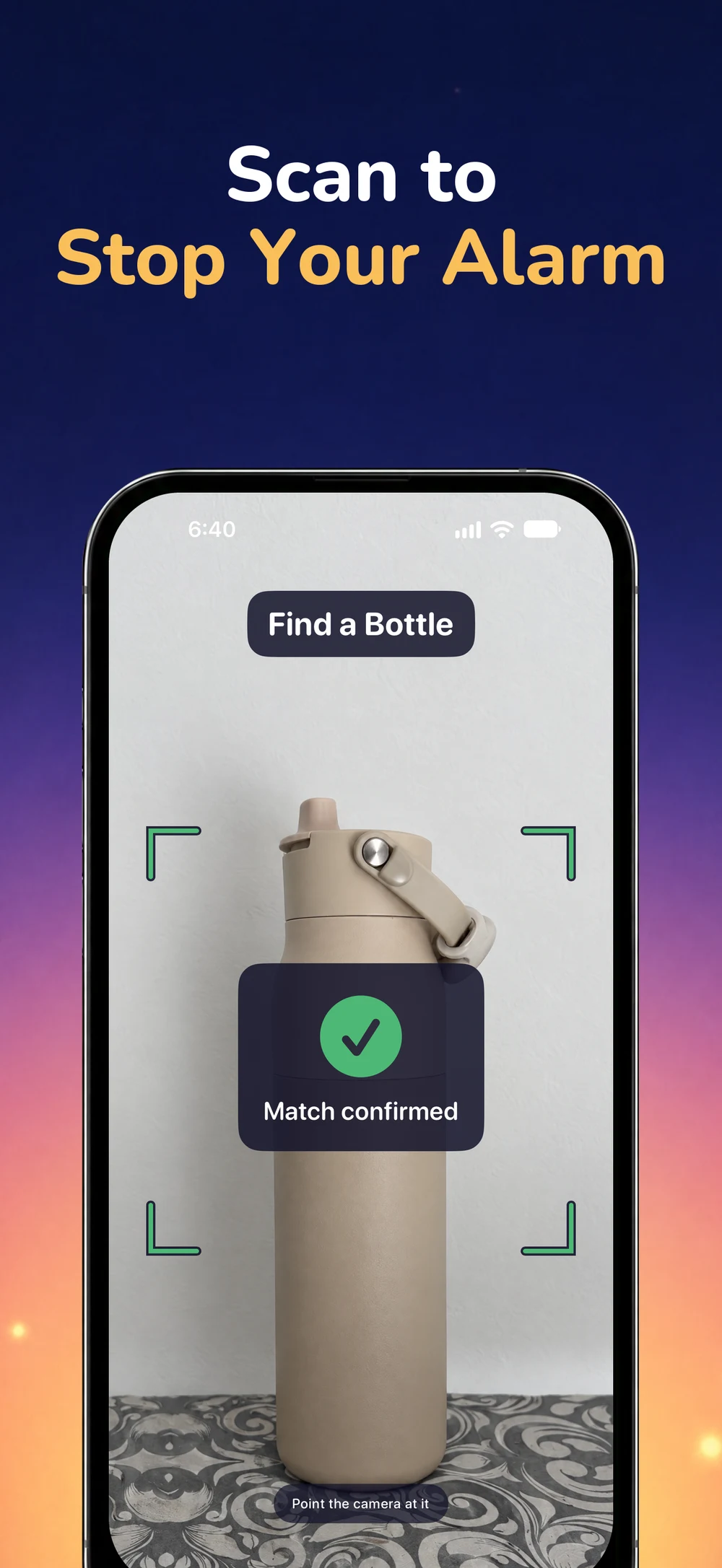
Choose a target such as a bottle, mug or sink. When the alarm rings, point the camera at that object. The green match confirmation tells you when WakeSharp has recognised it. Object recognition runs on your phone.
- Choose Scan an Object in the mission picker and select a target.
- Put the target somewhere you can reach safely after getting up.
- Point the camera at it in good light. Hold it steady until the match turns green.
Missions that get you up
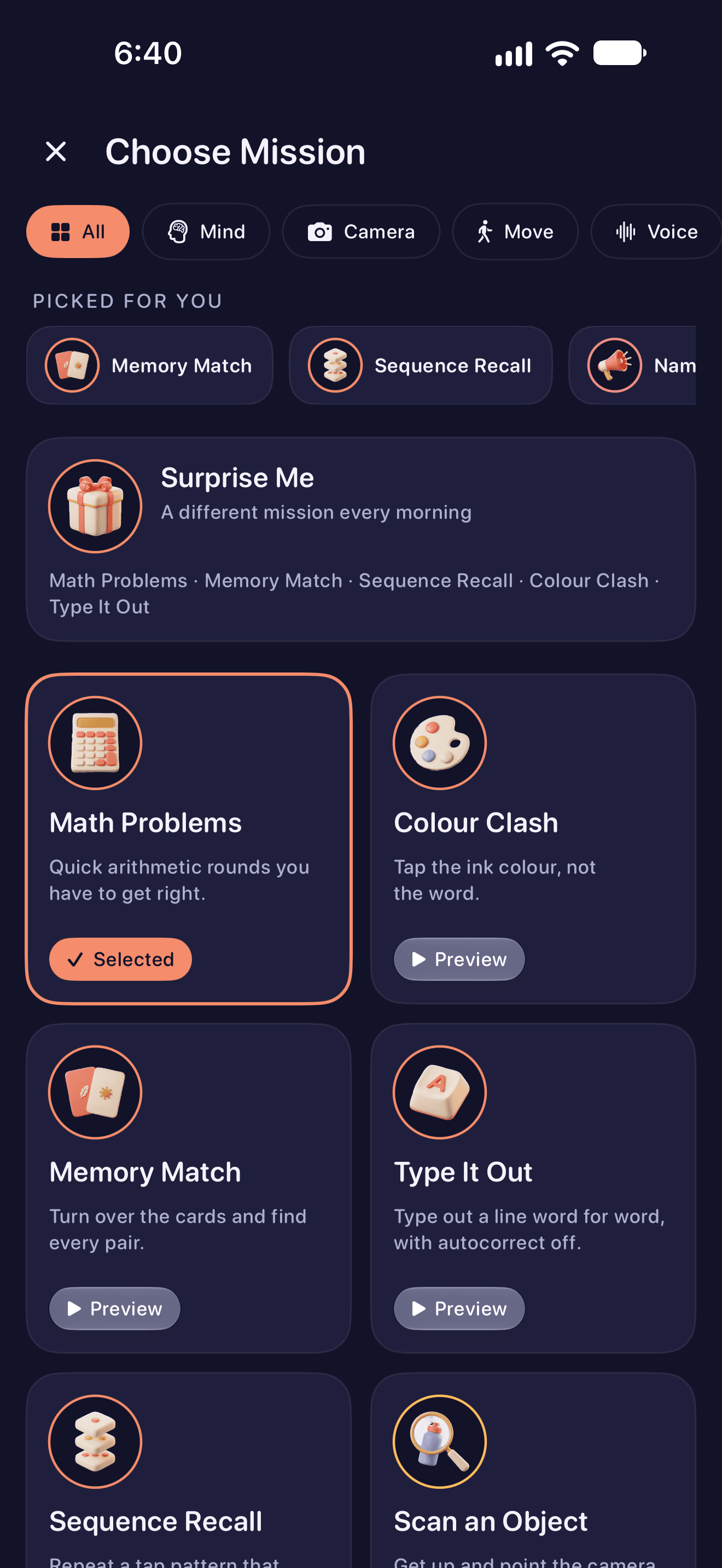
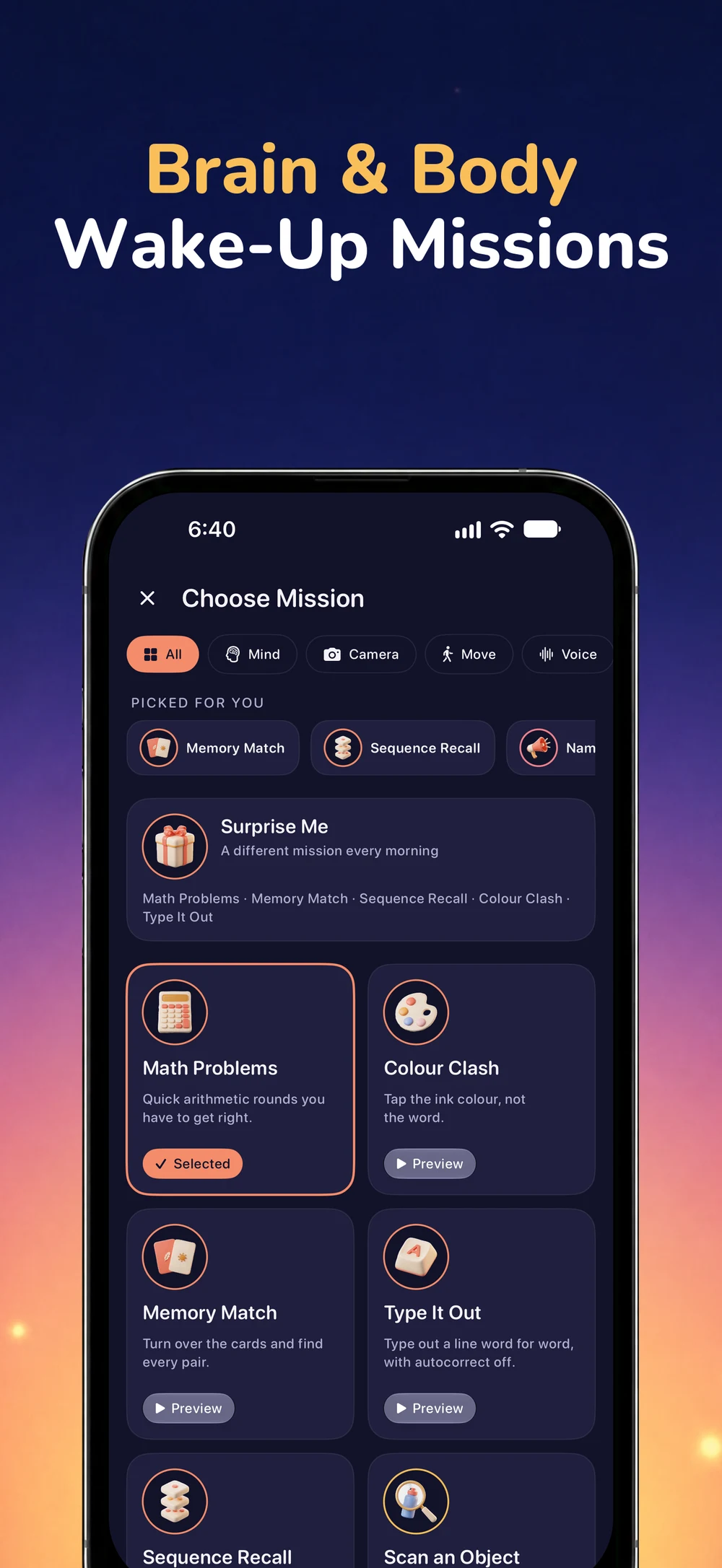
Choose from the missions below, or put several in a sequence. This is the public iPhone 2.14 selection. Camera, movement and voice missions need their corresponding permissions and supported hardware.
In iPhone 2.14, stopping or snoozing delays the alarm by one minute. It can repeat for up to one hour unless you finish the mission. Your phone’s own controls still work.
- Math ProblemsMind
Quick arithmetic rounds you have to get right.
- Memory MatchMind
Turn over the cards and find every pair.
- Sequence RecallMind
Repeat a tap pattern that grows each round.
- Colour ClashMind
Tap the ink colour, not the word.
- Type It OutMind
Type out a line word for word, with autocorrect off.
- Photo ProofCamera
Retake the photo of the spot you chose the night before.
- Scan an ObjectCamera
Get up and point the camera at a bottle, a mug or a sink.
- FetchCamera
Go and find something blue, or something you drink from.
- Face CheckCamera
Open your eyes for the camera, then follow the prompt.
- Fruit SlashCamera
Slice the fruit out of the air with your finger.
- Walk It OffMovement
Take real steps, counted by your phone.
- First LightMovement
Walk to a window and hold your phone in the light.
- Name FiveVoice
Name five things from a category, out loud.
- Surprise MeRandom selection
A different mission every morning.
A closer look at WakeSharp
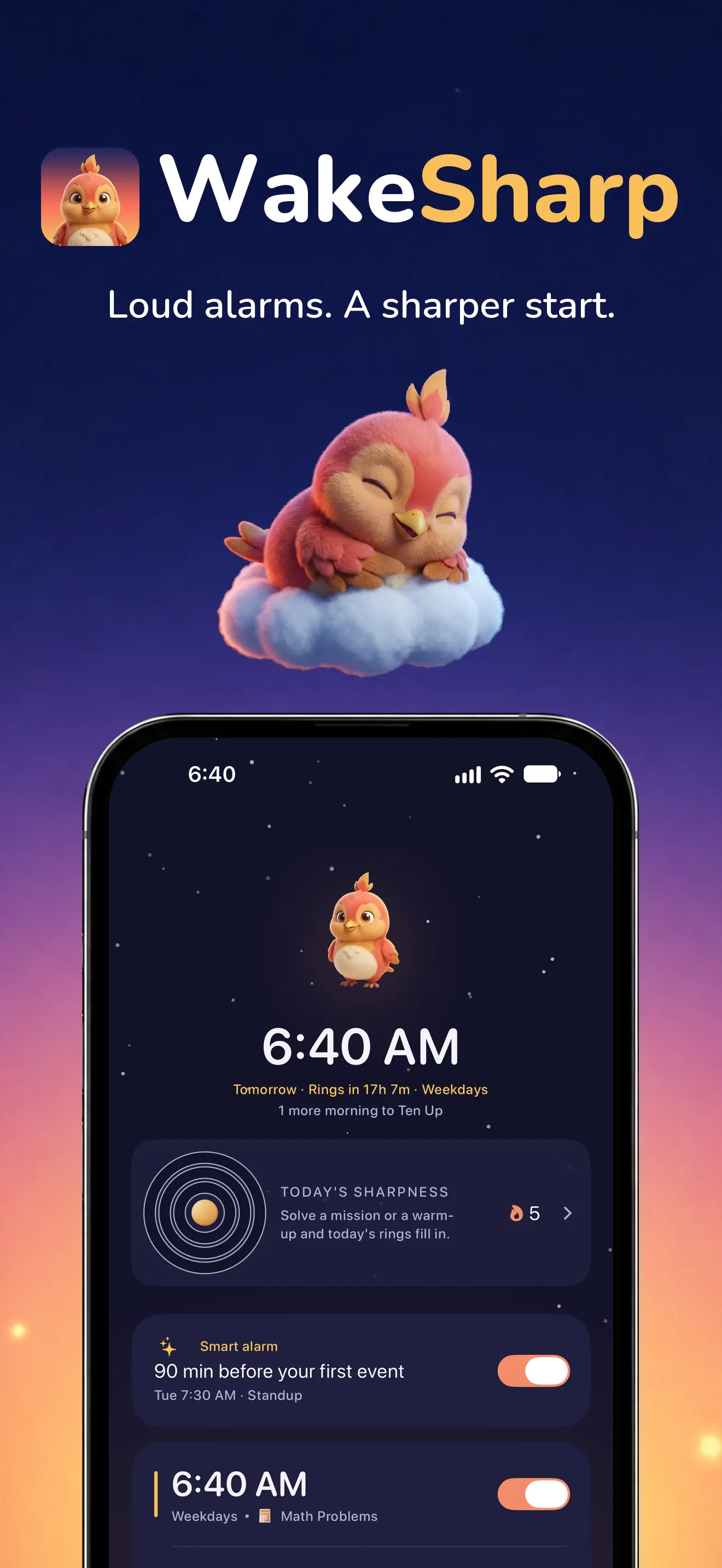
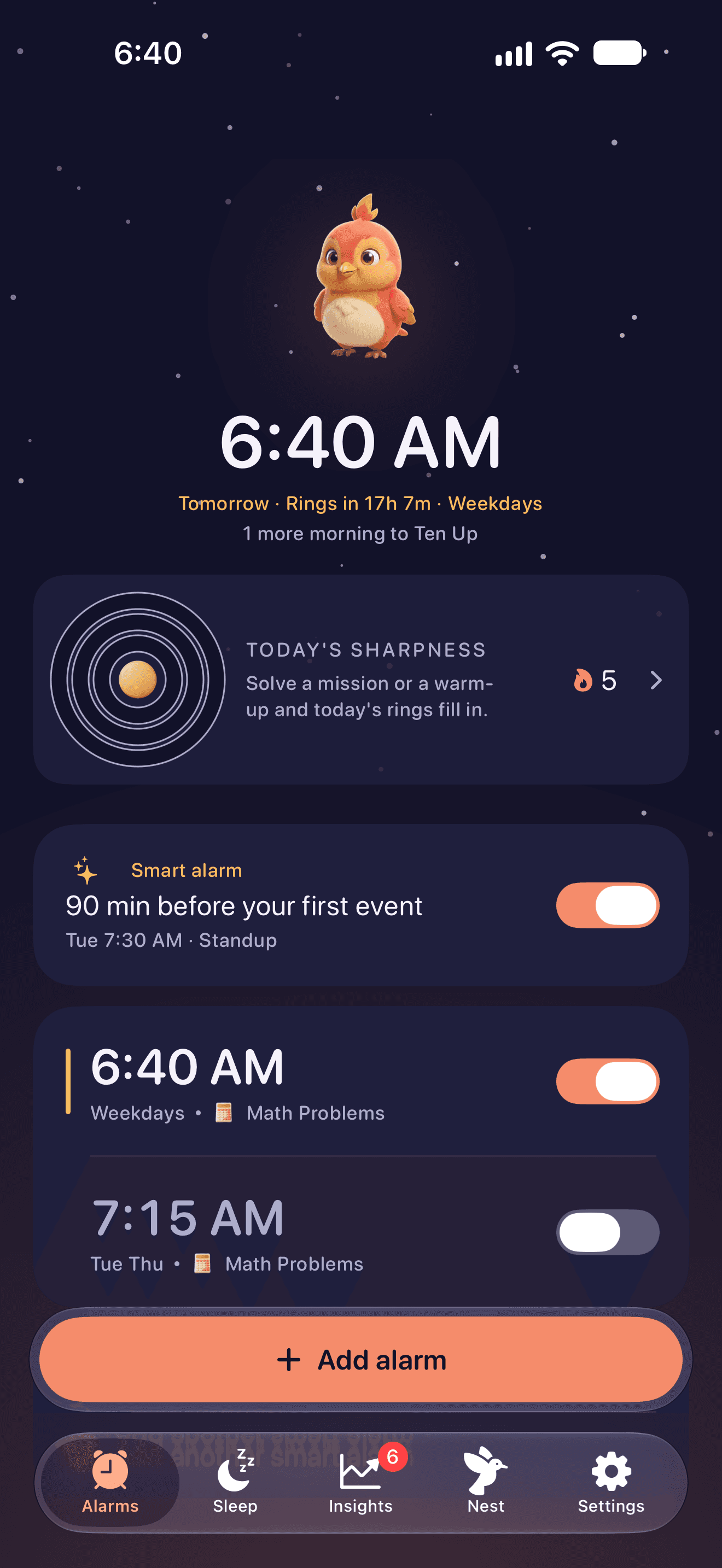
01. Your next alarm and morning overview 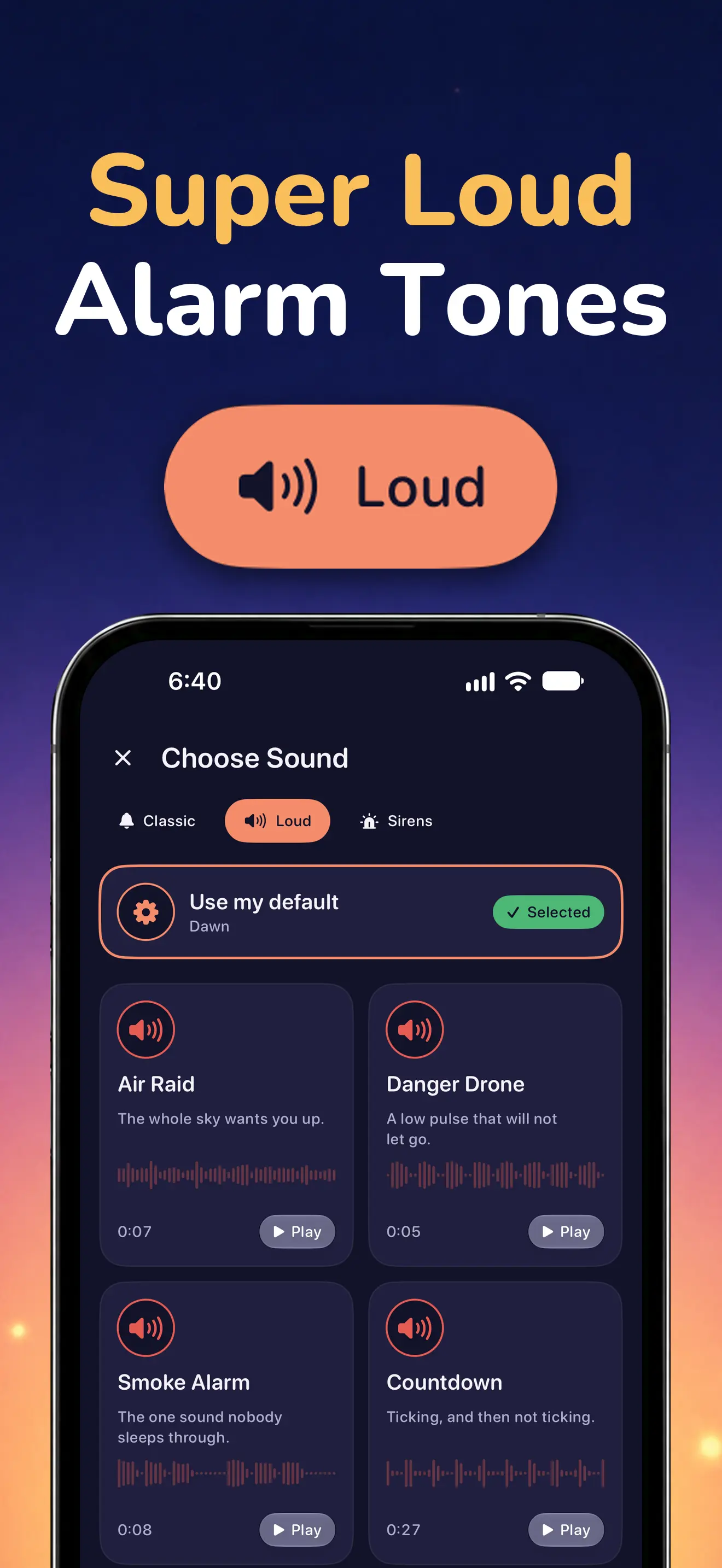
02. The Loud sound category and alarm tones 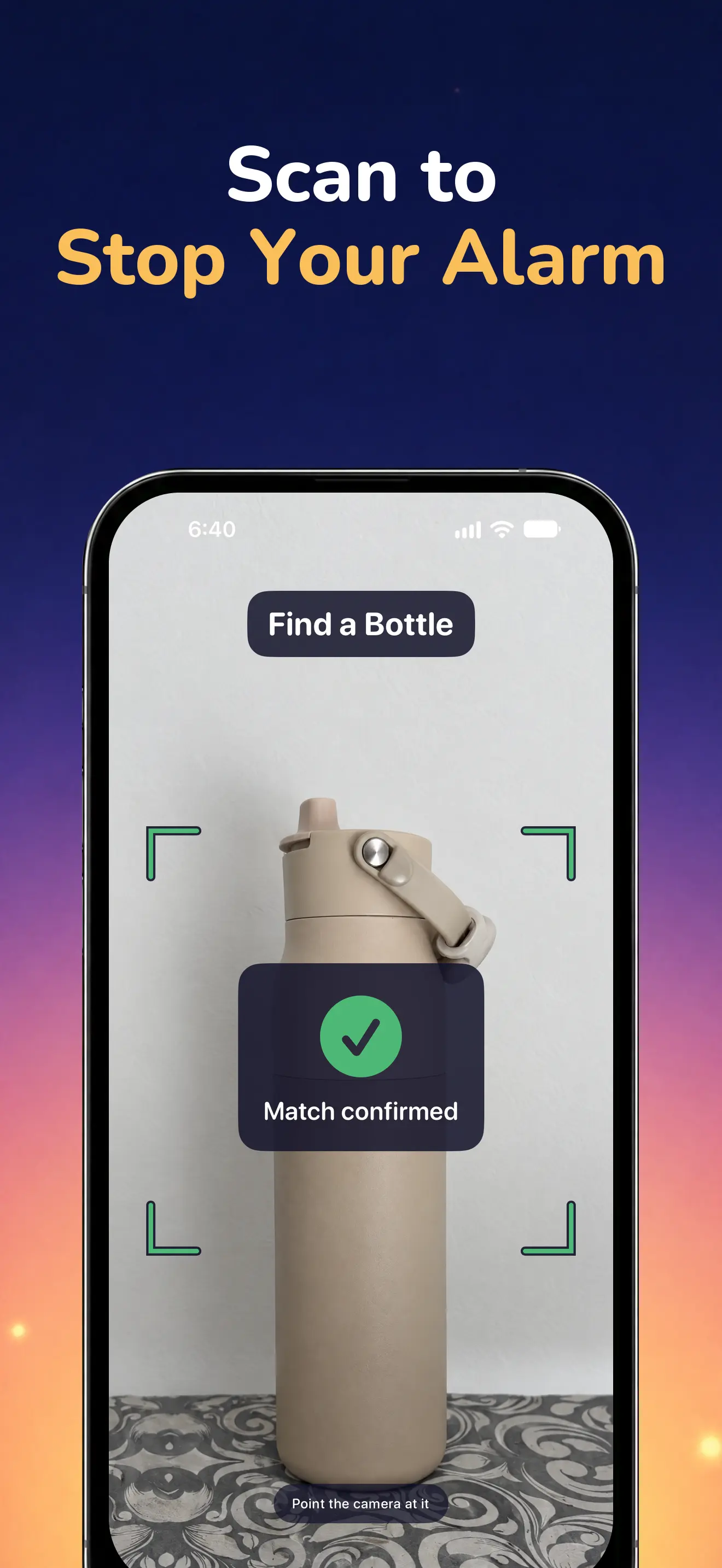
03. Scan an Object with a green bottle match 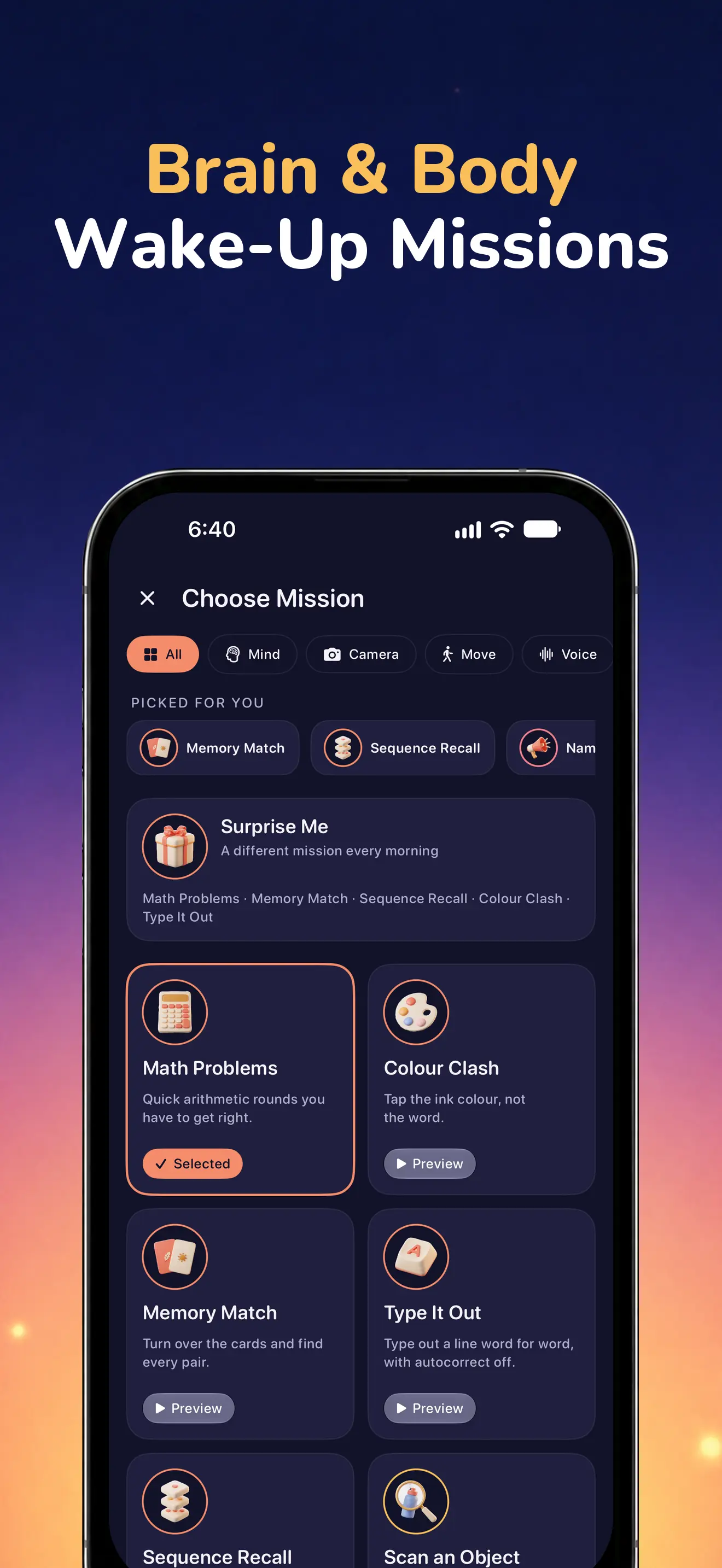
04. The available alarm missions 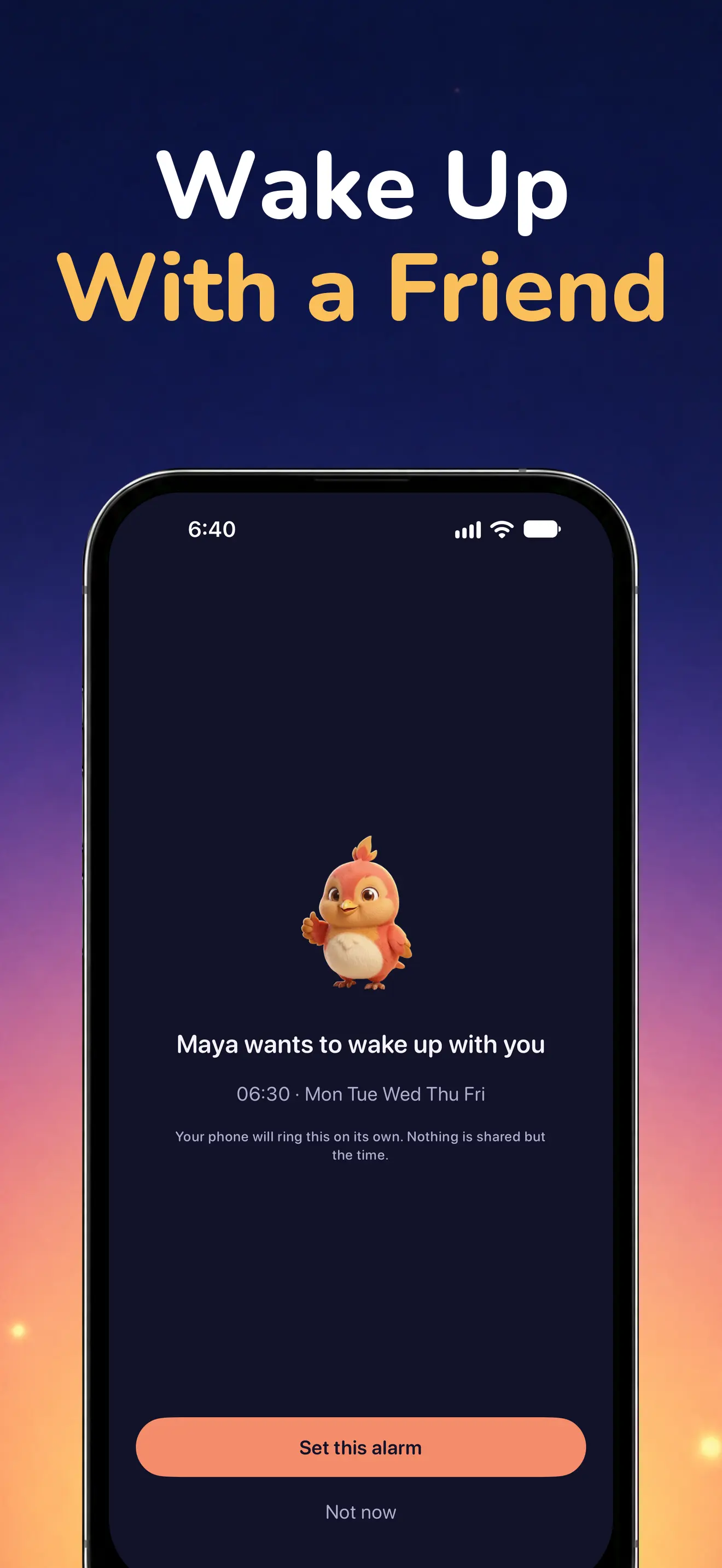
05. A shared alarm for waking with a friend 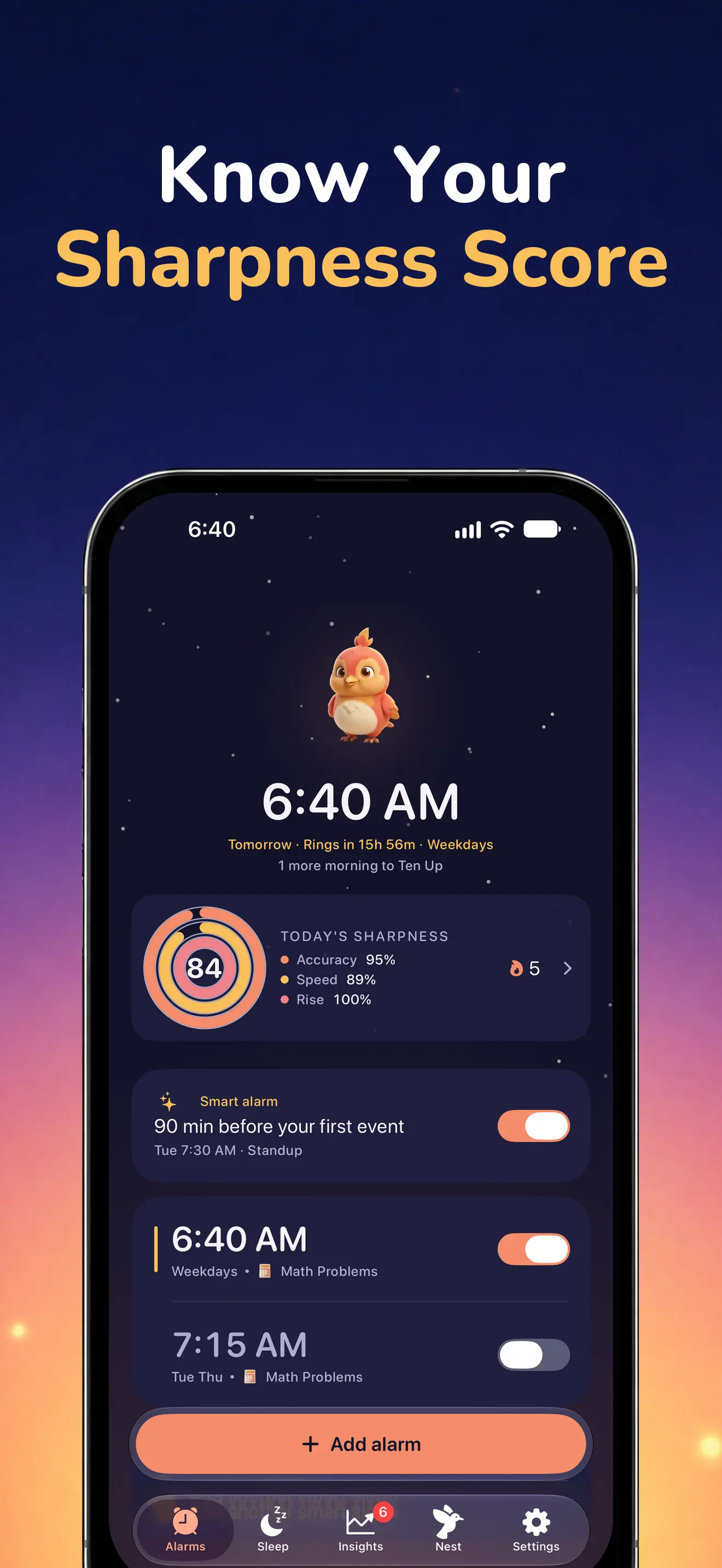
06. The daily Sharpness Score 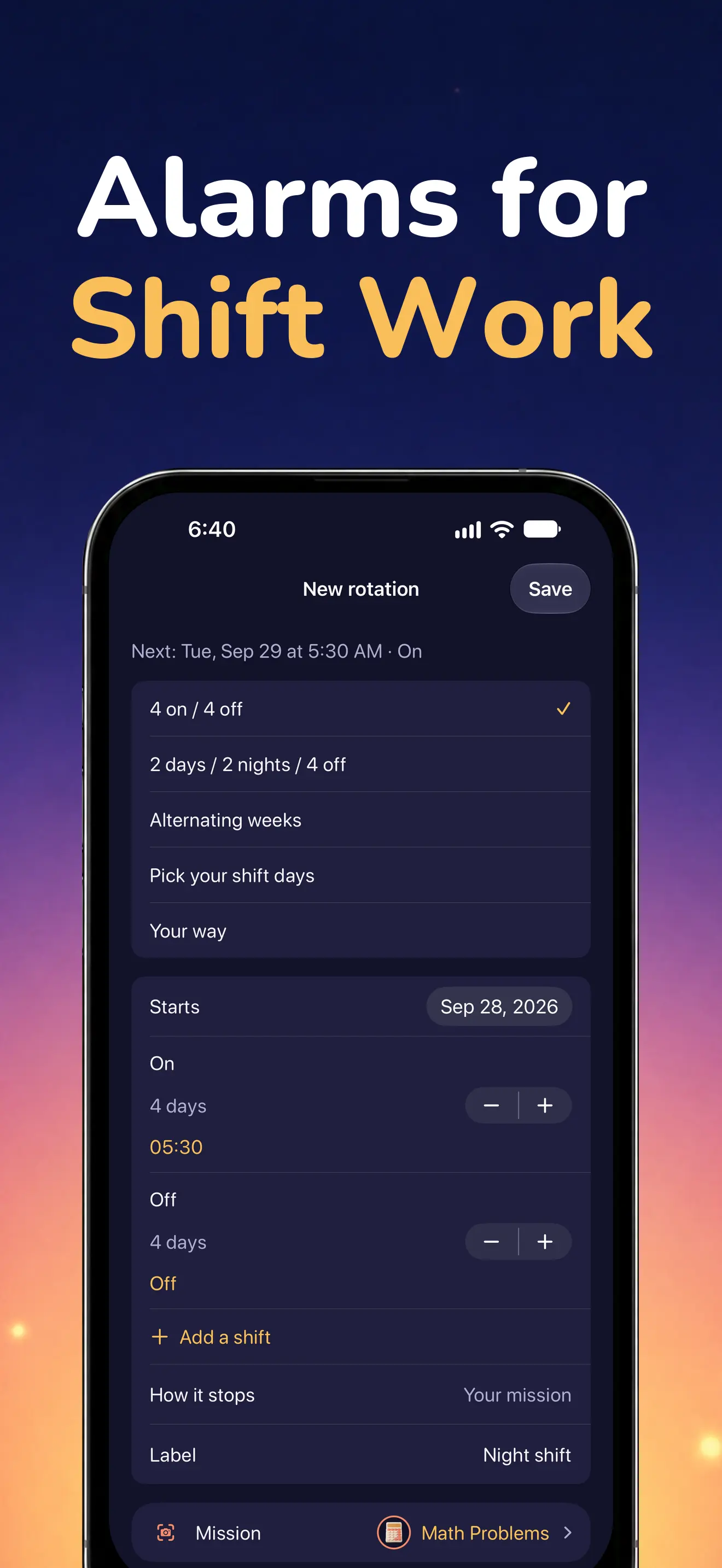
07. A shift rotation and its calendar 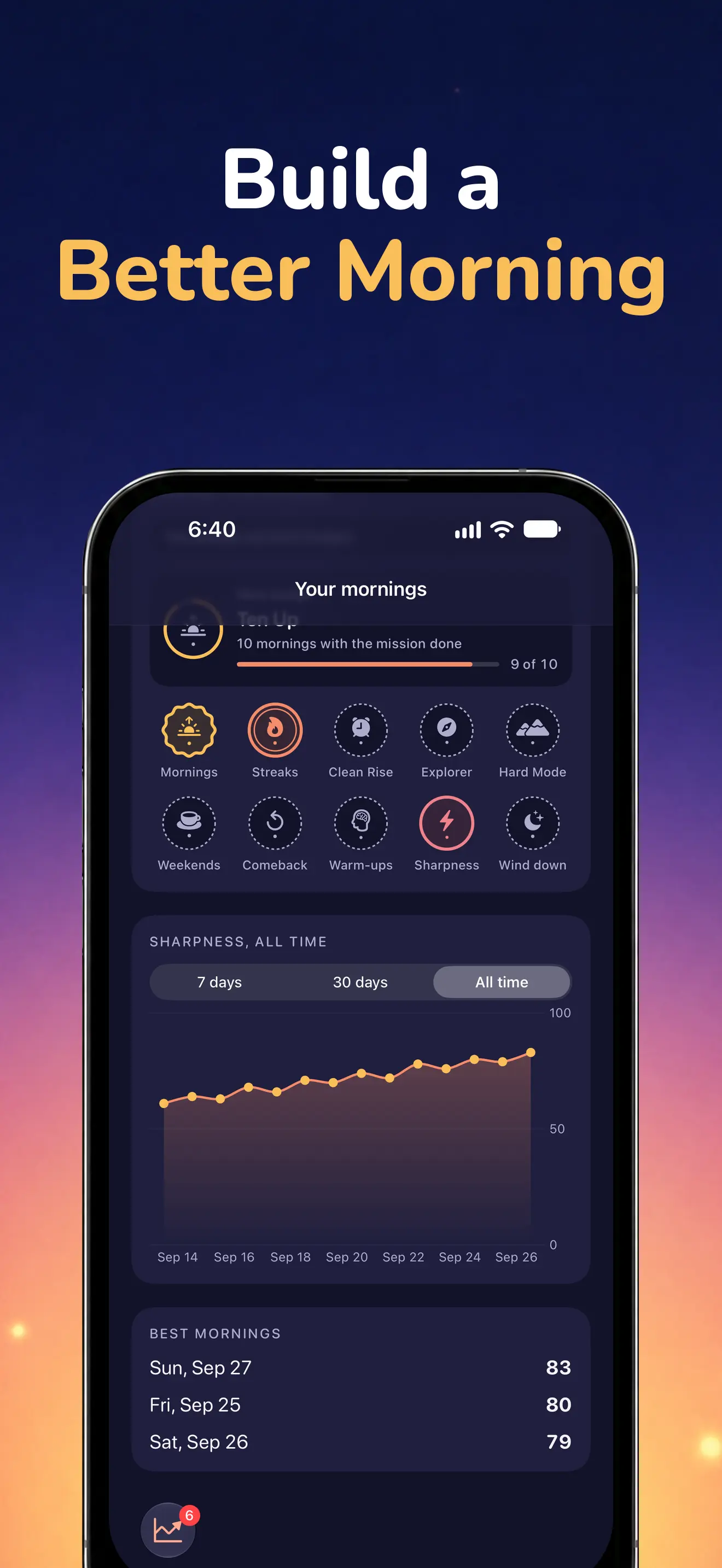
08. Morning history and progress
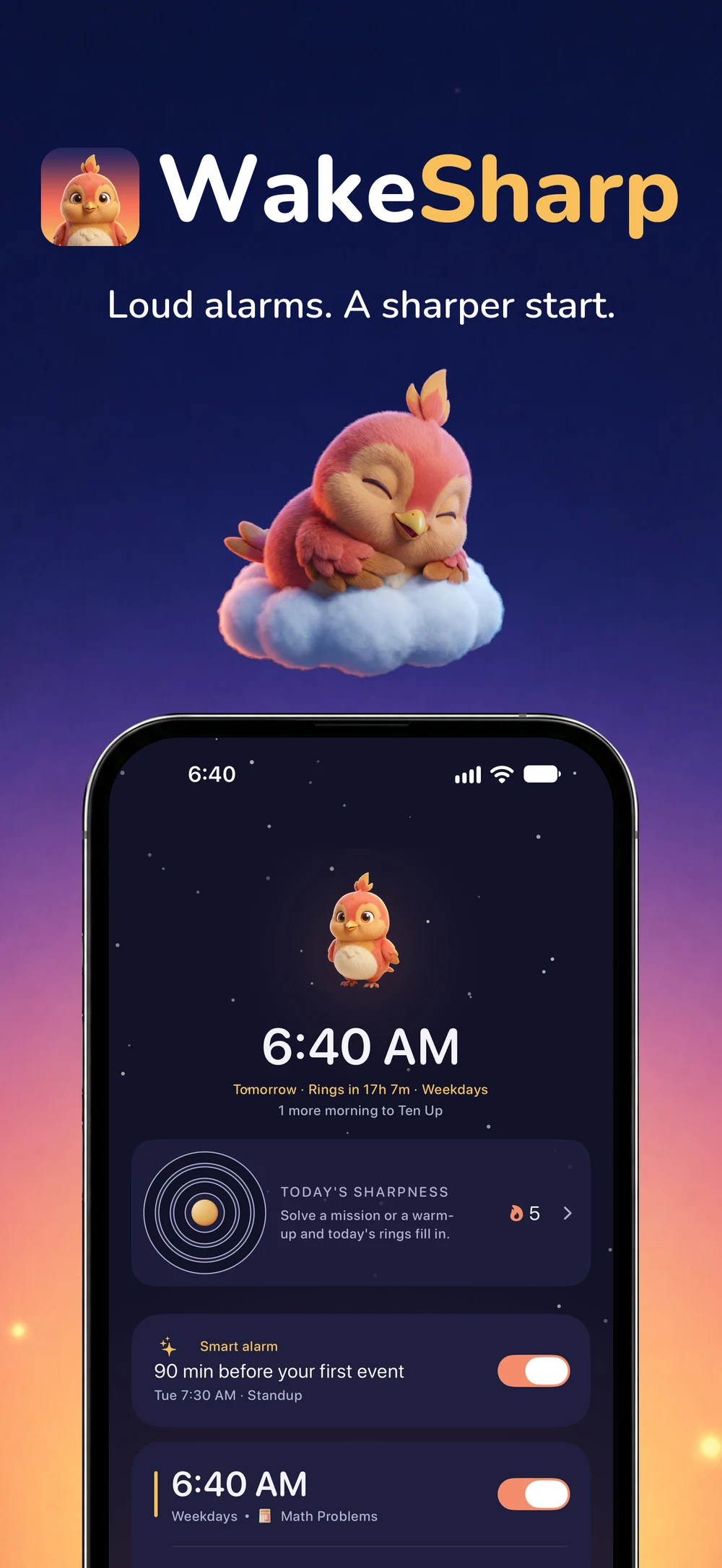
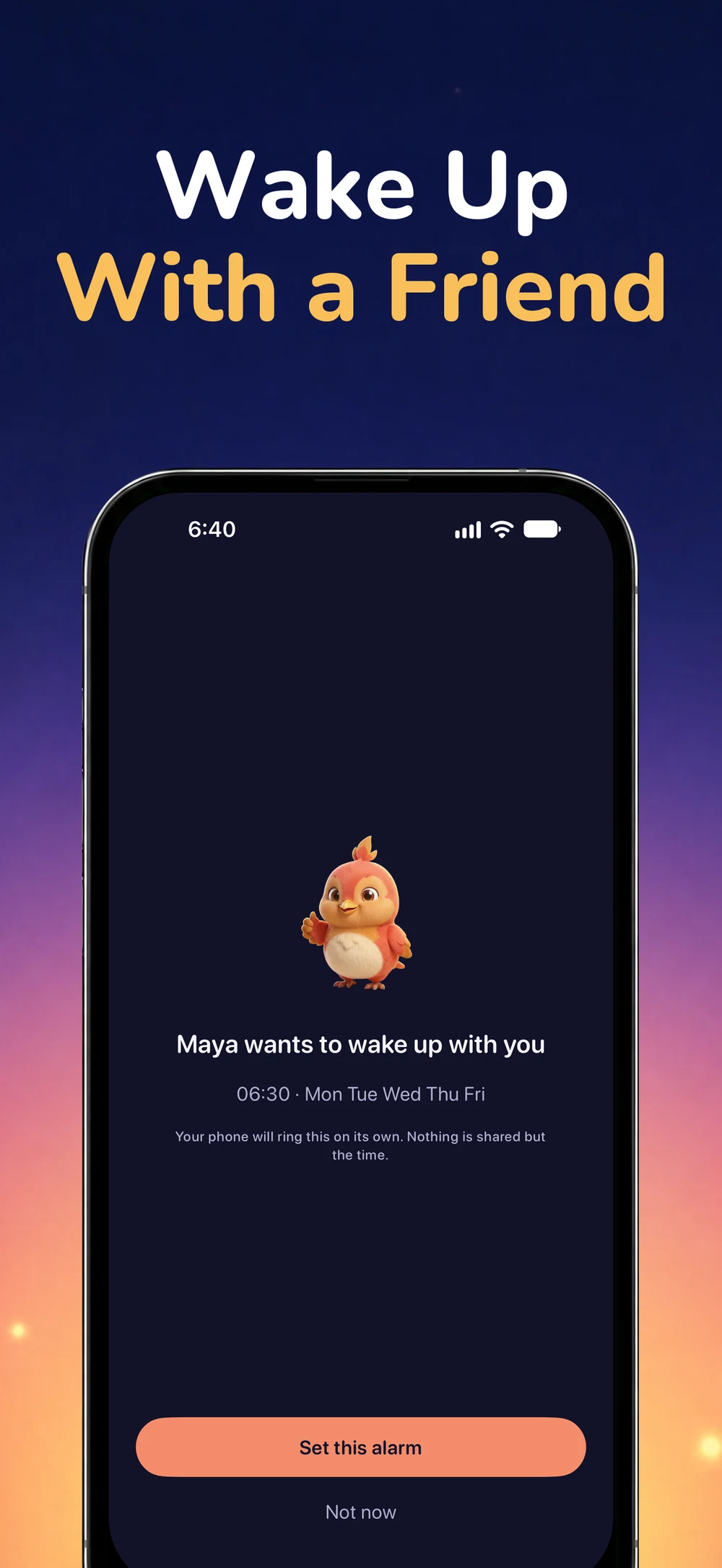
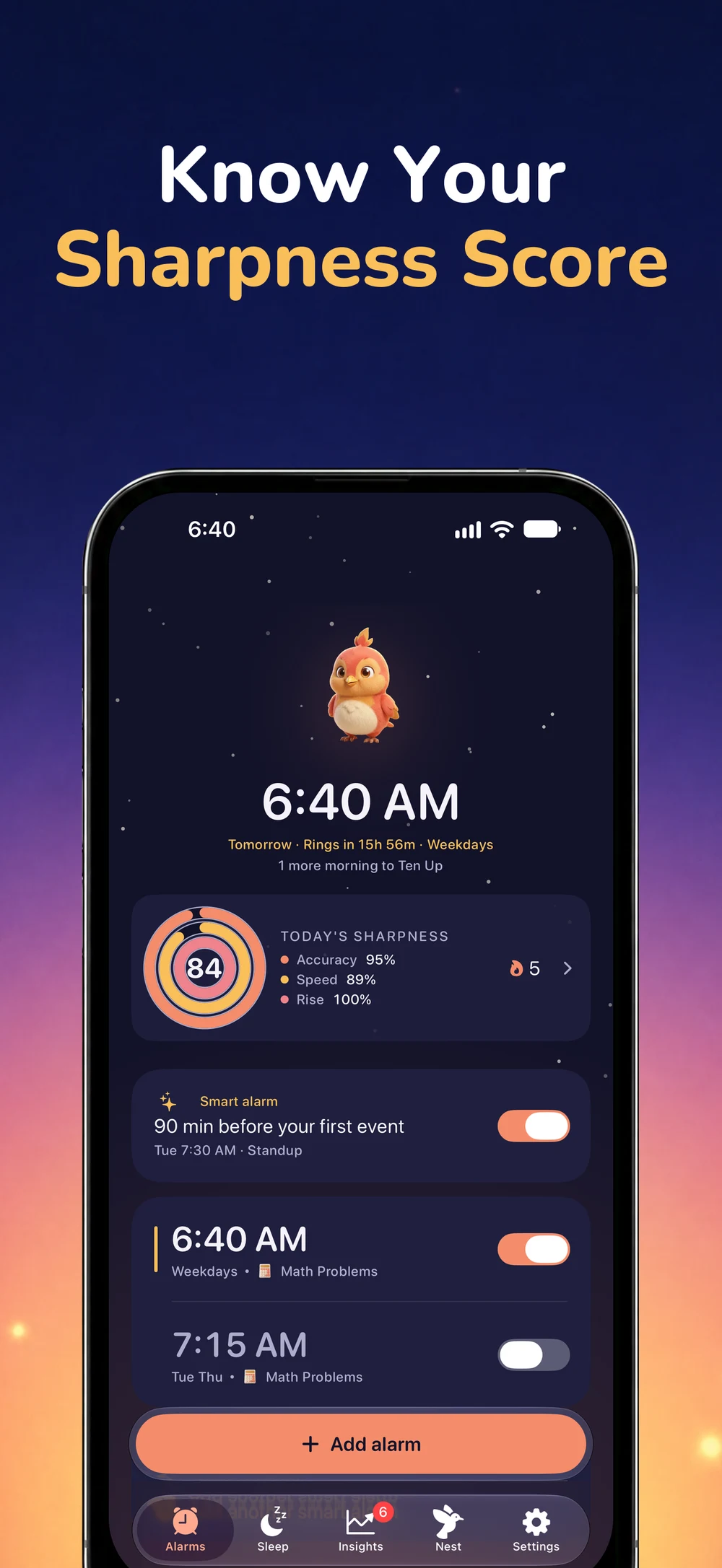
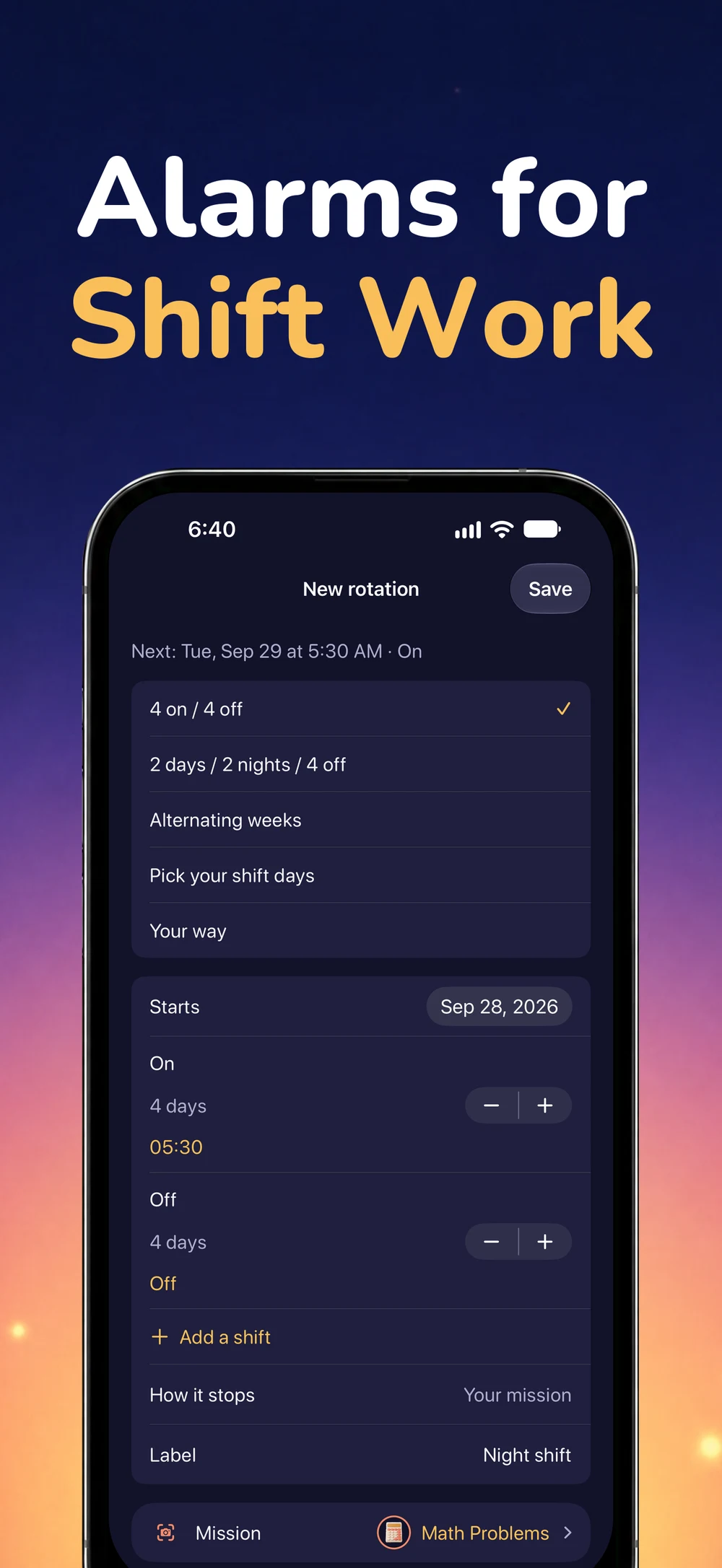
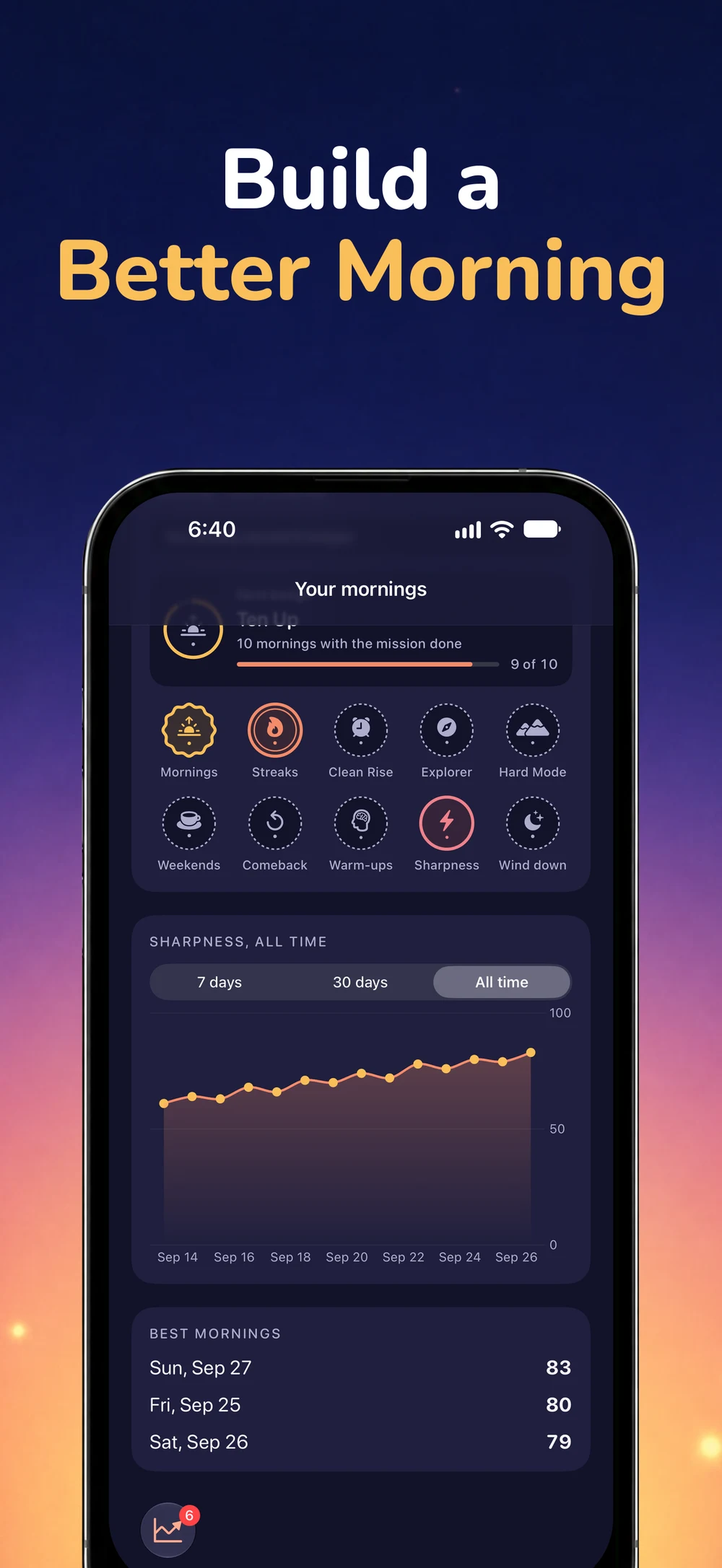
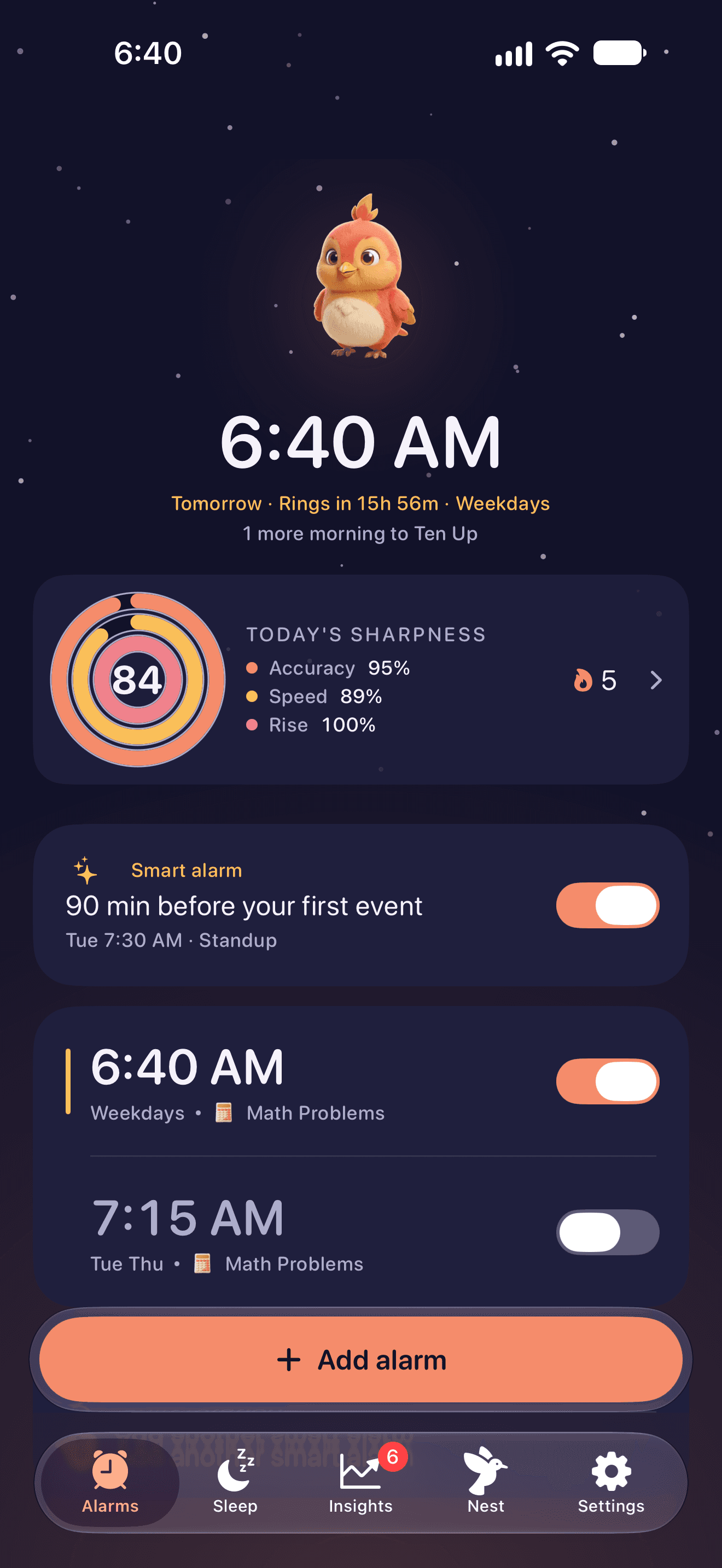
Wakes you before your first meeting
“Ring 90 minutes before my first meeting.” WakeSharp reads your calendar on your device, re-checks it overnight, and moves the alarm when the meeting moves. Read-only, optional, never transmitted.
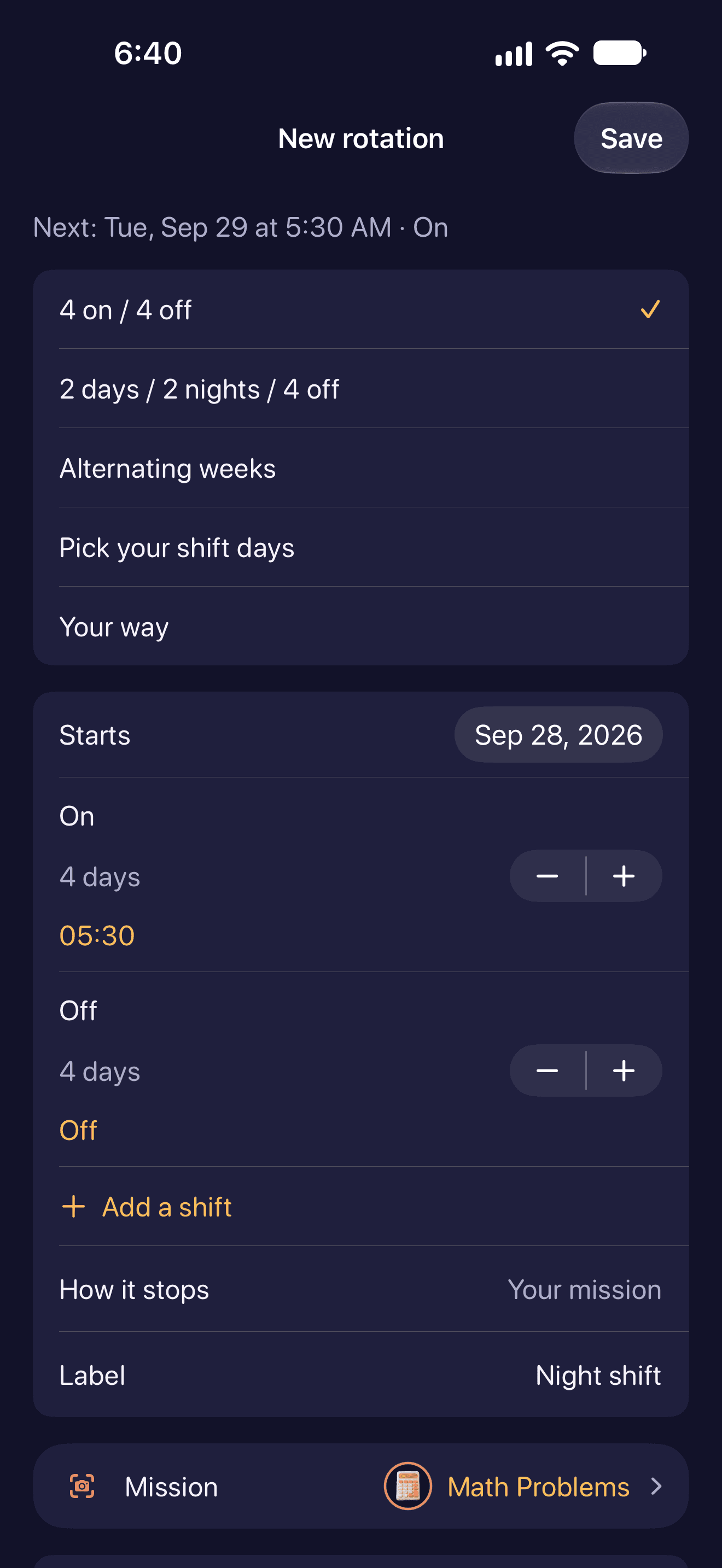
Not every week is a week, either. Shift rotations handle the patterns that aren’t weekly (two days on, two nights, four off) with a preview calendar and a way to skip a single date without deleting anything. Profiles swap a whole set of alarms at once for work, vacation or on call. Search, sorting and a Today view keep the list honest when there are a lot of them.
Calendar alarm clockAlarm clock for shift workers
Bring someone with you
You send a link; their phone builds the alarm locally. Everyone keeps their own copy, so changing yours doesn’t reach into theirs.
See how your morning went
Sharpness is a daily in-app score. Review it alongside your history, streaks and badges, then visit Nest for your progress with Lark. It is not a sleep score or a medical assessment. A single number does not tell you whether you are safe to drive or work.
The brain warm-up is optional. Math Problems, Memory Match and Sequence Recall can also be alarm missions. Word Dash and Reaction Tap are warm-up games, not choices in the alarm mission directory.
Apple Watch & Android
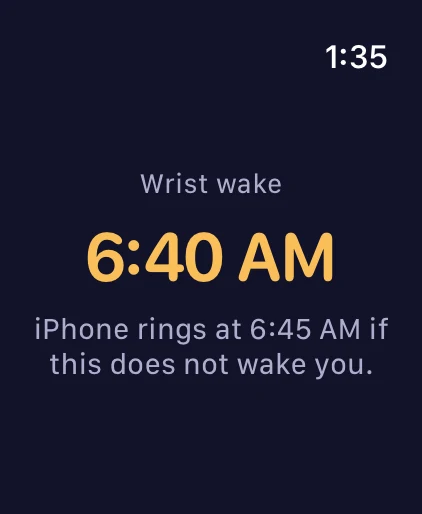
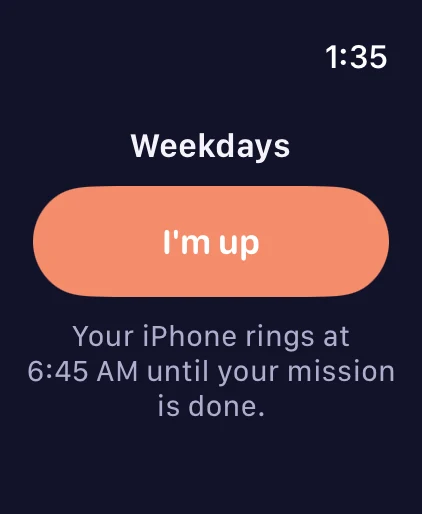
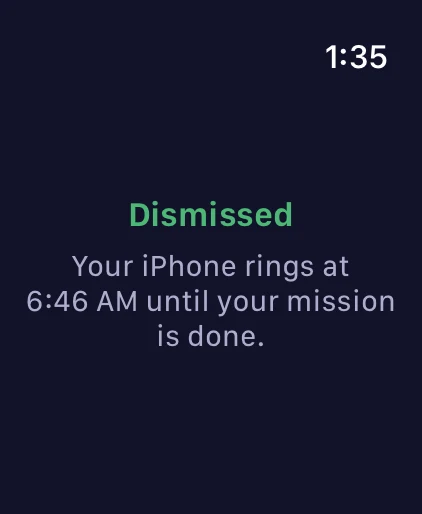
In iPhone 2.14, tapping “I’m up” on Apple Watch delays the phone alarm by one minute. Finish the mission on your iPhone to stop the repeat alarms. The Watch needs to be charged, connected and set up.
WakeSharp is also available on Android. Its alarm stream, permissions and battery settings differ from iPhone. These images show iPhone and Apple Watch, not Android or Wear OS. Check the installed app for the missions and controls available on your platform.
iOS 26 or later · Android 8.0 or later
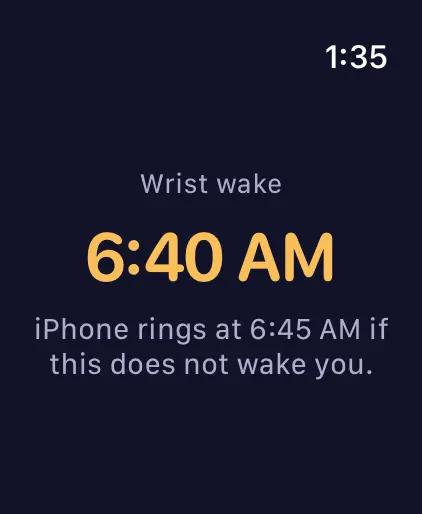
01. Apple Watch alarm overview 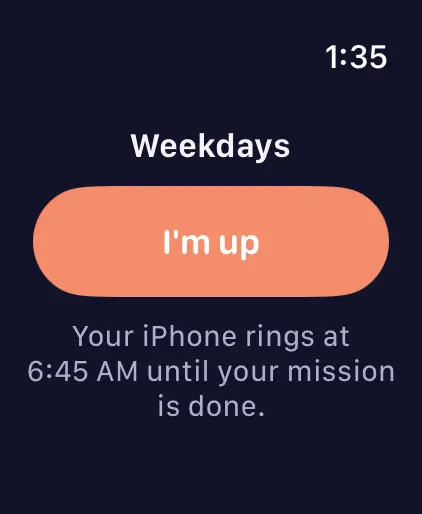
02. Apple Watch wake-up prompt 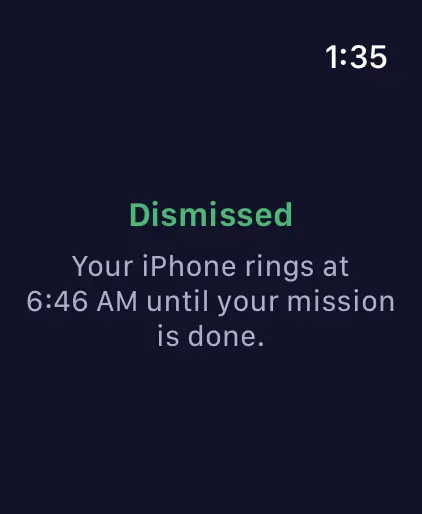
03. Apple Watch confirmation showing the next iPhone alarm time
Support
Most alarm apps find out they failed at the same moment you do. WakeSharp checks the things that actually stop alarms (permissions, alarm volume, notification settings, lock-screen takeover, battery restrictions) and leads with a verdict, not a promise.
Privacy Policy
No WakeSharp account is required. Optional sign-in with Apple or Google backs up alarms, history, preferences and small photo-target thumbnails. Camera matching and calendar processing happen on your device. Calendar event content stays there. Read the privacy policy for the full details.
One plan, everything in it
WakeSharp Unlimited is the whole app: every wake-up mission, the daily warm-up, smart calendar alarms, shift rotations and profiles, your full Sharpness history, and every Lark scene and wallpaper. WakeSharp shows no ads.
WakeSharp Unlimited
$34.99/year

- Start with a 7-day free trial, then $34.99 a year
- or $4.99 a month, with no trial
- Every wake-up mission, and several in a row if you like
- Three warm-up games every morning, rotating
- Your full Sharpness history
- Smart calendar alarms that can move when your first meeting does
- Shift rotations, profiles, and as many alarms as you need
- The reliability check and every alarm tone
- Every Lark scene, alarm wallpaper and celebration
- Wake with a friend, and the watch app on both wrists
- No ads
Yearly and monthly are billed by Apple or Google and renew until cancelled. Cancel any time in your store account, and note that deleting the app does not cancel a subscription. The free trial is for eligible new subscribers. See the Terms.
Questions, answered
Does it really ring in Silent, Focus or Do Not Disturb?
Behaviour is platform-specific, and it depends on permission. On iPhone, WakeSharp uses Apple’s AlarmKit, which supports ringing through Silent mode and Focus once you have granted alarm access. Decline or revoke it and WakeSharp cannot schedule anything at all. On Android it plays on the dedicated alarm stream, which rings through silent mode, and through Do Not Disturb when it allows alarms (Total Silence mutes every sound, alarms included) and it shows a full-screen alert over the lock screen, provided the exact-alarm, notification and lock-screen permissions are in place. What no app can do is ring on a phone that is switched off or out of battery, so for anything you truly cannot miss, set a second alarm on another device.
How do I check my alarm is actually going to ring?
Open Settings → Alarm reliability. WakeSharp reads the conditions on your phone that can stop an alarm (permissions, alarm volume, notification settings, lock-screen takeover, battery restrictions) and leads with a plain verdict rather than a promise. Where the platform will not tell us something, it says so instead of showing a green tick, because a checklist that quietly turns unknowns into passes is worse than no checklist at all. If an alarm ever does fail, the app can tell you the provable cause afterwards, or admit that it could not work it out.
Do I have to do maths at 6am?
Choose from the missions below, or put several in a sequence. This is the public iPhone 2.14 selection. Camera, movement and voice missions need their corresponding permissions and supported hardware.
Can I cheat past the mission?
In iPhone 2.14, stopping or snoozing delays the alarm by one minute. It can repeat for up to one hour unless you finish the mission. Your phone’s own controls still work.
What does the camera do?
Choose a target such as a bottle, mug or sink. When the alarm rings, point the camera at that object. The green match confirmation tells you when WakeSharp has recognised it. Object recognition runs on your phone. No WakeSharp account is required. Optional sign-in with Apple or Google backs up alarms, history, preferences and small photo-target thumbnails. Camera matching and calendar processing happen on your device. Calendar event content stays there. Read the privacy policy for the full details.
Does WakeSharp track my sleep?
No. There is no sleep tracking of any kind: no microphone listening overnight, no sleep staging, no score for your night, and no opinion about when you fell asleep. The step counter is read during the walking mission and at no other time. WakeSharp measures how sharp you are once you are up, and nothing before that. The only sleep-shaped things in it are a bedtime you plan yourself and optional wind-down audio.
What exactly does it read from my calendar?
Your upcoming events, read-only, entirely on your device, for one purpose: working out what time to wake you. Nothing is transmitted anywhere. It is optional, and every other feature works if you decline it.
Do I need an account?
No WakeSharp account is required. Optional sign-in with Apple or Google backs up alarms, history, preferences and small photo-target thumbnails. Camera matching and calendar processing happen on your device. Calendar event content stays there. Read the privacy policy for the full details.
What happens if my watch is dead?
In iPhone 2.14, tapping “I’m up” on Apple Watch delays the phone alarm by one minute. Finish the mission on your iPhone to stop the repeat alarms. The Watch needs to be charged, connected and set up.
What does WakeSharp cost?
There is one plan, WakeSharp Unlimited, and it includes everything. New subscribers can start with a 7-day free trial of the yearly plan, then $34.99 a year, or choose the monthly plan at $4.99 a month, which has no trial. Prices are in US dollars; the App Store and Google Play show the price for your country. WakeSharp shows no ads.
I bought Lifetime. Do I keep it?
Yes. Lifetime was a single payment and it stays yours: nothing renews and there is nothing to cancel. Restore Purchases brings it back on a new phone, using the same Apple or Google account.
How do I cancel?
Through the App Store or Google Play, any time, including during the free trial. Deleting the app does not cancel a subscription.
Does it track me?
WakeSharp shows no ads, but it does buy ads elsewhere, and it measures which ad or link brought you to the app and whether that led to a trial or a subscription. On iPhone it asks first: refuse, and your advertising identifier is never read and ad networks see only aggregated campaign results. Android works as the privacy policy describes. Product analytics can be turned off in Settings, and your alarm labels and calendar details are never sent. The privacy policy lists exactly what leaves your device.
From the blog
- iPhone Alarm Didn't Go Off? The 7 Real Causes
Your iPhone alarm never rang. Here are the seven causes that actually explain it, how to check each one tonight, and which ones are Apple's to fix.
- Tonight's 6-Point Checklist for an Alarm That Actually Rings
Six checks to run before bed so your alarm actually rings: volume, permissions, Do Not Disturb, battery limits, the charger, and one backup.
- Sleep Inertia: Why You Wake Up Groggy (and How to Wake Up Sharp)
Your brain takes 15 to 60 minutes to fully boot after waking. Here's the science of sleep inertia, and what actually shortens the groggy window.
About
I’m Dipojjal, the developer behind WakeSharp. I build it at KineticBit. I want the app to be clear about what it can do and what depends on your phone. If something is confusing or an alarm misbehaves, the contact form reaches me.

Tomorrow morning starts tonight
Set one alarm. See what a sharp morning actually feels like.
Available on the App Store and Google Play