
Tips & Tricks
Android Alarm Not Ringing? Blame the Battery Optimizer
1 September 2026 · 11 min read
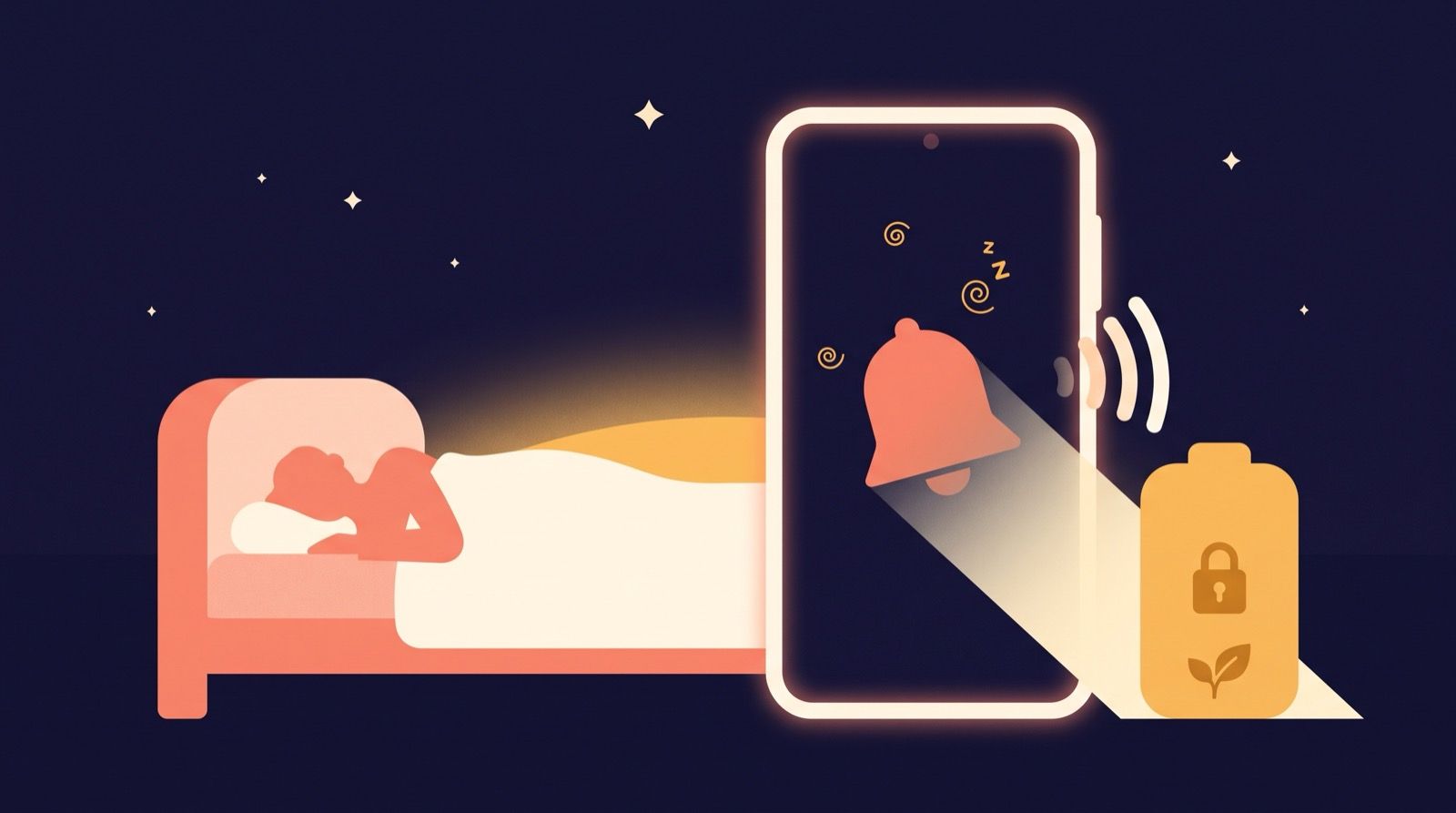
The stand-up started at nine. You found out at 9:41, from a phone lying face up on the nightstand: screen dark, battery at 71 percent, alarm still sitting in the list for 7:15 like nothing had happened.
Nothing crashed. Nothing warned you. The alarm was simply never delivered.
If this is your second or third time, the story you are probably telling yourself is that you are a heavy sleeper who cannot be trusted with mornings. On Android, that is usually the wrong suspect. What happened overnight was closer to a resource decision: your phone looked at an app that had been idle for seven hours, decided it was not earning its keep, and stopped it. An app that has been stopped has no pending alarms.
This is the Android counterpart to iPhone alarm didn’t go off? The 7 real causes. It needs its own list, because Android has something the iPhone does not: a second, manufacturer-written battery manager sitting on top of the operating system, with its own opinions and its own menus.
What is actually running while you sleep
Three layers of stock Android behaviour matter here, and it helps to know them by name before you start changing settings.
Doze. When your phone sits unplugged, still and screen-off, Android enters Doze mode and starts deferring background work. Google’s documentation is blunt about the consequence: Doze “defers standard AlarmManager alarms, including setExact() and setWindow(), to the next maintenance window.” An alarm meant for 7:15 that arrives at the next maintenance window is not an alarm. It is a notification about the past.
There is a documented escape hatch. Apps can schedule with setExactAndAllowWhileIdle() or setAlarmClock() to fire through Doze. Google also caps it: neither allow-while-idle method “can fire alarms more than once per nine minutes, per app,” per the Doze and App Standby guide. That is fine for a wake-up alarm, and worth knowing when you wonder why snooze behaves as it does.
Exact alarm permission. Since Android 12, scheduling an exact alarm requires permission. From Android 13 and 14, SCHEDULE_EXACT_ALARM is “no longer being pre-granted to most newly installed apps”, so a freshly installed alarm app can arrive on your phone with no ability to schedule a precise time until you allow it. Dedicated alarm clock and calendar apps can instead declare USE_EXACT_ALARM, which is granted on install. Either way the user-facing switch lives in Settings under “Alarms and reminders,” and it is worth checking rather than assuming.
App Standby Buckets. Android sorts apps into five priority buckets by how recently and how often you use them. The bottom one, “restricted,” is where it turns grim: an app in that bucket can “invoke one alarm per day”, and Android 13 can place an app there after eight days without interaction. An alarm app you open once a week, for an alarm you depend on daily, is precisely that profile.
None of this is malicious. It is a system optimising hard for battery life against the one use case where battery life is not the point.
Then the manufacturer layer lands on top
Stock Android is the polite version. On top of it, most Android phone makers ship their own battery manager, and those can stop an app outright rather than merely deferring its work. The long-running community reference here is dontkillmyapp.com, which has tracked per-brand behaviour for years and ranks Huawei, Xiaomi, OnePlus and Samsung among the worst offenders, while stock-style builds such as Pixel and Android One come off best.
This is why the same alarm app collects five-star and one-star reviews for identical behaviour. The app did not change. The phone did.
Two things are worth understanding before you go menu-diving.
A stopped app has no pending alarms. If you force stop an app, or a task killer does, or the system puts it into deep sleep, its scheduled alarms go with it until you open the app again.
A powered-off phone has no alarms either. Google states plainly that “by default, all alarms are canceled when a device shuts down”. A battery that hits zero at 4 a.m. and a scheduled power-off produce the same silence.
The five-minute fix, in order
Do these tonight, in this order. Most people are repaired by step 3.
1. Grant “Alarms and reminders”
Settings, then Apps, then your alarm app, then Alarms and reminders. On some builds it is Settings, then Apps, then Special app access, then Alarms and reminders. Turn it on. Without it, the app cannot schedule a precise time and everything below is moot.
2. Set battery usage to Unrestricted
Settings, then Apps, then your alarm app, then App battery usage, then Unrestricted. “Optimised” is the sensible default for most apps. It is not sensible for the one app whose entire job is to make a sound at a fixed second while the phone is asleep.
3. Switch off your manufacturer’s extra battery manager for that app
This is the step that fixes most Android alarm failures, and it lives somewhere different on every brand. Menu names drift between versions, so treat these as a map rather than a transcript.
- Samsung (One UI). Battery and device care, then Battery, then Background usage limits. Remove your alarm app from “Sleeping apps” and “Deep sleeping apps,” then add it to “Never auto sleeping apps.” Samsung’s own support page defines deep sleeping apps as apps that “will never run in the background”, which is exactly the condition you do not want an alarm in. Turning off “Put unused apps to sleep” helps too.
- Xiaomi, Redmi, POCO (MIUI and HyperOS). Three separate switches, all required. Under Apps, open your alarm app and turn Autostart on (sometimes listed under App permissions as Background autostart). Then set that app’s battery saver setting to “No restrictions.” Then open Recents, drag the app’s card down, and lock it.
- OnePlus, OPPO, realme (OxygenOS and ColorOS). Under Battery, then App battery usage, set the app to “Allow background running” or Unrestricted, and enable auto-launch. Then look for “Sleep standby optimisation” or “Deep optimisation” in battery settings and turn it off.
- Huawei, Honor (EMUI and MagicOS). Battery, then App launch. Take the app off “Manage automatically,” then enable auto-launch, secondary launch and run in background by hand.
- vivo, iQOO (Funtouch and OriginOS). Battery, then High background power consumption, allow the app there, and enable Autostart.
- Google Pixel. Mostly the stock path in step 2, plus opening the app’s entry under Apps and turning off “Pause app activity if unused.” Consider too whether Adaptive Battery has learned the wrong lesson from an app you rarely open.
- Motorola and Nothing. Close to stock, so step 2 usually covers it. Check Battery settings for any additional optimisation toggle and allow the app there.
- ASUS. Mobile Manager, then PowerMaster, then Auto-start Manager, and allow the app.
- Sony. Add the app to the battery optimisation allowlist and confirm STAMINA mode is not restricting it.
For your exact model, dontkillmyapp.com keeps a per-brand page with screenshots.
4. Check Do Not Disturb, Bedtime mode and Modes
Android’s alarm stream is separate from ringer and media volume, so a phone on silent normally still rings its alarm. What changes that is a mode you configured months ago and forgot. On Pixel, Modes, then your mode, then Notification filters includes “Alarms and other interruptions,” which lets you “block or allow alarms”. Bedtime mode and the sleep modes on other brands have equivalents, sometimes buried two levels down, and they are a common reason a perfectly configured phone stayed quiet.
5. Raise the alarm volume, in the right place
Press a volume key, open the expanded slider panel, and check the alarm slider specifically. Media sitting at 80 percent tells you nothing about it.
6. Charge it, and check where the sound is going
An overnight charger removes the flat-battery failure outright, and a plugged-in phone does not Doze the same way. Then disconnect Bluetooth before bed. An alarm routed to a kitchen speaker, or to earbuds in a drawer, is technically a success and practically a disaster.
7. Do not force stop it, and do not sweep it out of Recents
After all of the above, leave the app alone. A force stop cancels its pending alarms until you next open it. On aggressive builds, a hard “clear all” in the recents screen has a similar effect. This one habit quietly undoes every other step on the list.
What no app can fix
Being honest about the ceiling matters more than another tip.
- No app can grant itself a permission. If “Alarms and reminders” is off, an app can detect that and send you to the right screen. That is the end of its power.
- No app can overrule a manufacturer’s battery manager. If the system stops it, it is stopped, and it does not get a vote or even a log entry.
- No app rings on a phone that is off, flat, or on a scheduled power-off.
- No app can promise you will wake up. Alarms fail, and people also sleep through alarms that fired perfectly, which is a separate problem covered in why you sleep through alarms you don’t remember dismissing.
One structural truth is worth saying out loud: your phone’s built-in clock app generally gets protection no third-party app receives, because it ships as a system app outside much of the battery management above. That is a platform decision, not a conspiracy, and it is the honest reason to configure a third-party alarm app deliberately instead of assuming it inherits the same armour.
Where WakeSharp fits
The maddening part of all this is that none of it is visible from the alarm screen. You set a time, you see a time, and the dozen conditions that decide whether a sound happens live somewhere else entirely.
WakeSharp’s alarm reliability check exists for that gap. It reads the conditions on your device that can genuinely silence an alarm, including exact-alarm permission, notification settings, alarm volume and Android battery restrictions, and reports what it finds in plain language. Where it detects a restriction it can deep-link you to the right settings screen, which on a Samsung device saves you a real expedition.
Its limits are the ones listed above, and they apply to WakeSharp exactly as they apply to everything else. It can detect and warn. It cannot grant itself a permission, and it cannot override a manufacturer’s battery manager. Where the platform refuses to tell it something, it says so rather than showing a green tick it has not earned. No alarm app is a guarantee. For a flight or an exam, still set a second alarm on a separate device. Your alarm rings free, forever, and Plus is ad-free.
If you would rather work from a pre-bed list than a post-mortem, tonight’s 6-point checklist for an alarm that actually rings covers the same ground in about three minutes.
FAQ
Why does my Android alarm not go off when the phone is locked overnight?
Because a locked, still, unplugged phone is the exact condition that triggers Doze and, on most non-Pixel phones, the manufacturer’s own battery manager. Both can defer or cancel the work your alarm app scheduled. Grant “Alarms and reminders,” set the app’s battery usage to Unrestricted, and remove it from your brand’s sleeping or auto-start restriction list.
Does battery saver stop alarms on Android?
Standard battery saver usually will not stop a properly permitted alarm, but extreme or ultra power saving modes on Samsung, Xiaomi and Huawei can suspend third-party apps almost entirely. If you use one overnight, allowlist your alarm app or turn the mode off before bed, then test it with an alarm two minutes ahead.
Why does my alarm app work for a week on Samsung and then stop?
That pattern is the signature of an app drifting into a restricted state. Android can push an app that you have not opened for about eight days into the restricted standby bucket, where it is limited to one alarm per day, and Samsung separately moves unused apps into “Sleeping apps” and “Deep sleeping apps.” Add the app to “Never auto sleeping apps” under Battery and device care and the pattern stops.
Is the stock Clock app more reliable than a third-party alarm app on Android?
Out of the box, often yes, because it ships as a system app and is exempt from much of the battery management that applies to everything you install. A third-party app can match it once you have given it exact-alarm permission, unrestricted battery usage and an exemption from your manufacturer’s app-sleeping list. For a morning you cannot afford to miss, run both.
- android
- alarm-reliability
- battery-optimization